“`html
What Is a Memory Leak in Geometry Dash
Geometry Dash memory leak issues absolutely wreck mid-run performance, and I’ve experienced this firsthand during marathon grinding sessions. Here’s what actually happens: every time you play a level, the game loads assets into your RAM — the spike platforms, background sprites, music files, particle effects. Normally the game cleans this up when you exit or restart. But sometimes it doesn’t.
Instead of releasing that memory back to your system, it just stays there. Hoarded. Useless. Then you load another level, and the game adds more assets on top of the already-occupied space. You’re not running out of total RAM — you’re running out of available RAM that Geometry Dash can actually use.
I learned this the hard way. I was grinding through a particularly brutal 8-minute demon level — we’re talking 80% completion, cube section where one mistake costs fifteen minutes of retrying. The game ran smooth for the first hour. But by attempt forty-seven, stutters started happening. By attempt sixty, the frame stutters turned into full-on freezes at specific jump sections. I’d lose runs that felt clean because the game couldn’t process the collision detection fast enough.
The stuttering specifically comes from the CPU having to work harder when RAM is fragmented and nearly full. It’s different from just low FPS — your frames might stay at 60, but the game pauses for 200 milliseconds at a time. Unplayable. The audio crackles. Your inputs lag by a split second.
This is distinct from permanent lag or frame rate issues. A memory leak is progressive. The game runs fine for the first thirty minutes, terrible by hour two.
Signs Your Game Has a Memory Leak
Not all lag is a memory leak. Here’s how to tell if that’s actually your problem:
- Stuttering that progressively worsens. You notice hitches getting longer the more levels you play without restarting. First session plays smooth. Fifth level in that session? Choppy.
- Audio glitches or crackling sounds. The music cuts out briefly or the jump sound effect stutters. This is RAM exhaustion, not speaker issues.
- Freezes on specific levels after hours of play. That same level you beat earlier today runs smooth. But after playing for three hours straight, the same level freezes during certain sections.
- Game becomes responsive again after restart. Close Geometry Dash completely, reopen it. Smooth sailing for the first few levels. If performance returns to normal, you had a memory leak, not a permanent hardware problem.
- Event levels or custom levels trigger it faster. Levels with lots of particles, colors, or visual effects consume more RAM. If you notice lag specifically after playing those, memory accumulation is your culprit.
The key distinction: true memory leaks are temporal. They happen because of time and repeated use within a session, not because your device is inherently weak.
Step-by-Step Fix for Windows and Mac
Probably should have opened with this section, honestly. Most players just want the solution. Here it is.
Step 1 — Close Background Applications
Open Task Manager on Windows (Ctrl+Shift+Esc) or Activity Monitor on Mac (Command+Space, then type “Activity Monitor”). Look for applications consuming significant RAM — Chrome with fifteen tabs open, Discord, Spotify, streaming software.
Close what you don’t need. I typically kill everything except essentials. Discord gets closed. Web browser gets closed. Streaming apps especially — OBS or Streamlabs can consume 300MB+ easily.
Step 2 — Fully Restart the Game
Don’t just exit to the main menu. Force close the application completely. On Windows, use Task Manager to “End Task.” On Mac, force quit through Command+Option+Esc.
Wait 10-15 seconds. This gives Windows time to actually release the memory Geometry Dash was using. Then reopen the game fresh.
Step 3 — Clear the Game Cache
This is where accumulated temporary files live. Windows: navigate to C:\Users\[YourUsername]\AppData\Local\GeometryDash (or wherever you installed it). Look for any “Cache” or “Temp” folders. Delete contents.
Mac: Go to Library (Command+Shift+L in Finder) → Caches → search for “Geometry Dash” → delete that folder.
Steam players: Right-click Geometry Dash in your library → Properties → Local Files → “Verify integrity of game files.” This replaces corrupted cache without losing save data.
Step 4 — Lower Graphics Settings
Launch the game. Go to Settings → Graphics. Set these specifically:
- Texture Quality: Medium or Low
- Particle Effects: Low or Off
- Background Details: Low or Off
- Vsync: Enable (caps framerate at 60, reduces GPU memory demand)
Start with Low across the board if you’re experiencing severe lag. Test incrementally higher settings afterward — once the stuttering stops, you’ll know where your threshold is.
Step 5 — Update GPU Drivers
Outdated graphics drivers cause memory management issues specifically. NVIDIA users: go to nvidia.com/Download/driverDetails.aspx. AMD users: amd.com/en/support. Intel users (for integrated graphics): intel.com/content/www/us/en/support.html.
Download the latest driver for your GPU model. Install it. Restart your computer completely.
Step 6 — Monitor RAM During Play
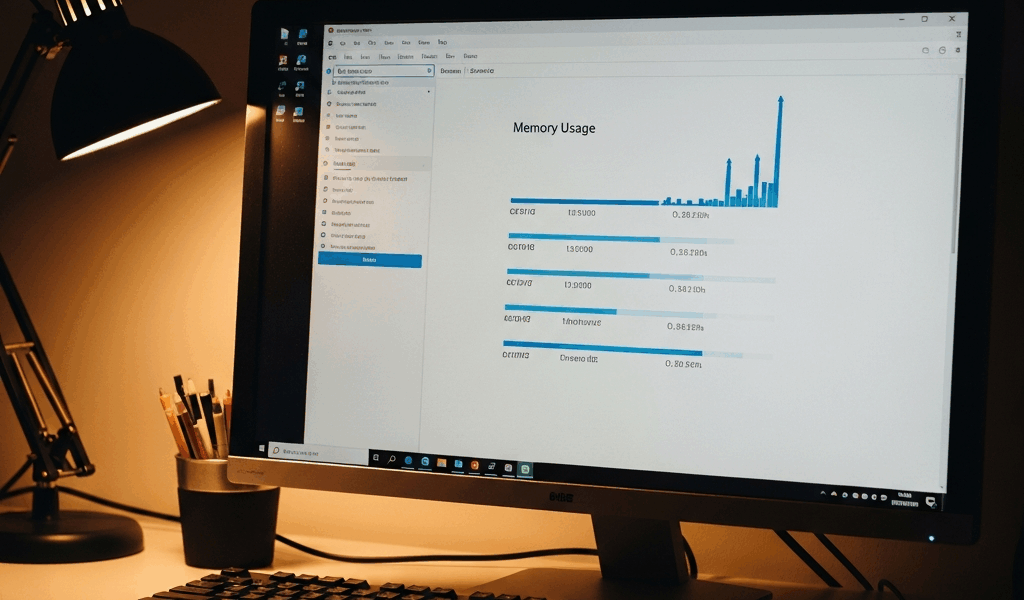
Open Task Manager or Activity Monitor while playing. Watch the Geometry Dash process. If memory usage climbs from 200MB to 800MB over an hour, you’ve confirmed a memory leak.
If after these steps the memory stays stable — fluctuates within 50-100MB range — you’ve fixed it.
Mobile Memory Leak Solutions
Android and iOS handle memory differently. You can’t manually clear cache as easily, and you have fewer graphics settings to adjust.
Close Background Applications (Android and iOS)
Swipe up from bottom (iOS) or use the app switcher. Close everything except Geometry Dash. Mobile RAM is significantly lower than desktop — 256GB of free RAM matters way more proportionally.
Free Up Storage Space
Go to Settings → Storage. Aim for at least 2-3GB of free space on your device. Geometry Dash needs room to create temporary files. When storage is critically low (under 500MB free), the OS prevents the app from functioning properly.
Reduce Particle Effects
Android: Settings → Graphics → Particle Density: Low. iOS doesn’t have this option built-in, but turning on “Low Power Mode” in Settings → Battery helps indirectly.
Reinstall the App
If mobile lag persists, uninstall Geometry Dash completely. On iOS, hold the app icon → Remove App → Delete App. On Android, Settings → Apps → Geometry Dash → Uninstall.
Reinstall from the App Store or Google Play. This wipes corrupted cache files and gives you a clean installation. Your save data syncs automatically if you’re using a Geometry Dash account.
Mobile has inherent limitations. Phones with under 4GB RAM will struggle with extended play sessions regardless of optimization. Budget Android phones especially. If you own a phone with 2GB RAM, expect stuttering on event levels no matter what you do.
How to Prevent Memory Leaks Long Term
The nuclear option of “restart after every session” works but isn’t sustainable for serious players. Better habits prevent the problem from accumulating in the first place.
Restart after 2-3 hour sessions. Don’t grind eight-hour stretches without closing the game completely. Geometry Dash wasn’t designed for marathon sessions without memory cleanup. Build in breaks anyway — helps with focus and prevents hand strain.
Avoid leaving the game idle in the background. If you’re switching to Discord or browsing while the game sits on the level select screen, memory still accumulates. Close it if you’re taking a break longer than ten minutes.
Monitor your device’s total storage. A phone sitting at 95% capacity will experience worse memory management across all apps. Keep at least 10% free space on your device permanently.
Keep your operating system updated. Windows and macOS patch memory management bugs regularly. Install updates when prompted. Outdated OS versions have known memory leak issues across multiple applications, not just Geometry Dash.
I started applying these habits six months ago. The difference is dramatic. I used to restart my PC weekly just to fix Geometry Dash stuttering. Now I restart every two weeks and the game stays smooth the entire time.
Memory leaks aren’t inevitable. They’re a side effect of how Geometry Dash’s engine allocates resources — not a hardware limitation. Knowing where to look and what to optimize removes the frustration of losing runs to invisible technical problems.
“`




Leave a Reply