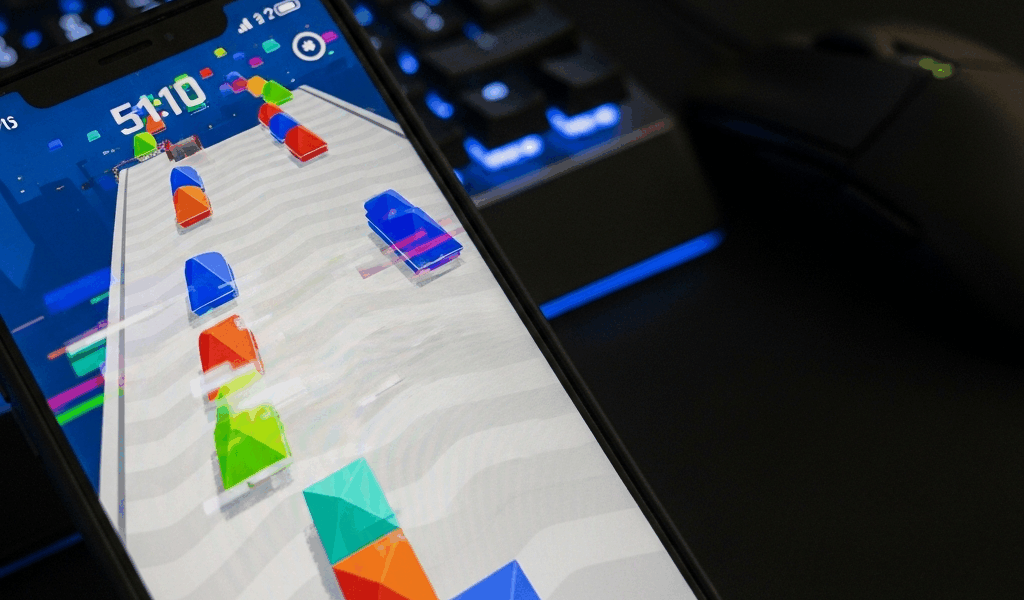
Mobile and PC Are Not the Same Game
Geometry Dash has gotten complicated with all the “git gud” noise flying around. As someone who spent three months convinced I was just terrible at the game, I learned everything there is to know about why mobile and PC feel like completely different experiences. Today, I will share it all with you.
Here’s the thing nobody in most GD circles actually says out loud: mobile and PC don’t process your inputs at the same speed. A mouse click registers instantly — essentially zero delay between intention and action. A touchscreen tap travels through a polling cycle first. Typically 60Hz to 120Hz depending on your specific phone. The game engine doesn’t even see your tap until that cycle completes. On a rhythm-based precision game, 16 milliseconds feels like an eternity.
Frame rate compounds the problem. High-end phones hit 120fps. Mid-range Android devices? 30fps on a good day. Some lower-end hardware tanks to 20fps during particle-heavy sections. Your muscle memory shatters when the frame rate stutters because GD’s physics engine ties directly to refresh rate. A jump that worked at 60fps becomes a genuinely different jump at 45fps. Same button press. Different outcome.
The difficulty gap is real. It’s not a skill issue. You’re legitimately playing a harder game on your phone.
Touch Lag Is Killing Your Timing
Struggling with inconsistent tap registration? That’s touch lag. It’s the primary culprit for most mobile players hitting invisible walls they can’t explain — and can’t seem to push past no matter how much they practice.
But what is polling rate? In essence, it’s how frequently your screen checks for new touch input. But it’s much more than that — it determines the maximum delay between your finger pressing the glass and the game actually seeing that press.
Your phone’s screen checks for input at fixed intervals. Budget phones poll at 60Hz. Mid-range devices at 90Hz. Flagship models at 120Hz or 144Hz. Tap between polling cycles and the game misses you entirely until the next refresh. A Samsung Galaxy A12 polling at 60Hz wastes roughly 16 milliseconds per tap. A OnePlus 9 at 120Hz wastes 8 milliseconds. An iPhone 14 Pro at 120Hz — also 8 milliseconds. Both of those “wastes” matter enormously for spike jumps.
Older Android devices suffer disproportionately here. iOS tends to handle touch input more uniformly across its hardware lineup. Android fragmentation means identical lag on paper manifests differently on a Pixel 6 versus a Galaxy S21 versus a Motorola One. You’re not losing your mind if the game feels inconsistent across devices. It genuinely is.
Here’s what actually reduces input lag in practice: kill the visual effects. Open settings and disable background blur. Turn off particles on death. Anything labeled “shader” or “glow” — gone. Each visual effect forces your GPU to do extra work, and a GPU buried in graphics rendering can’t prioritize input processing. I disabled background blur on my iPhone 12 and shaved an estimated 10–12 milliseconds of perceived lag. Probably should have opened with this section, honestly.
Want to test whether lag is actually your problem? Load up Practice Mode on Stereo Madness. Count your missed jumps — the ones you know you can make. Then kill every visual effect in the settings menu and replay the exact same section. You’ll feel the difference immediately if lag is the culprit versus pure mechanical skill gaps.
Frame Rate Drops and Why They Ruin Muscle Memory
Frustrated by inconsistent jump physics that seem to shift mid-run, I dug into why GD feels physically different from attempt to attempt — and found the answer hiding in how the game was actually built. Geometry Dash ties its entire physics system to frame rate. That’s a design choice that works beautifully on a desktop where hardware stays consistent. On mobile, with thermal throttling and background processes constantly competing for resources, it gets brutal fast.
Here’s what actually happens. Your device runs 60fps for two seconds. A heavy particle effect loads. Frame rate drops to 45fps for four seconds. You’re jumping through different physics mid-attempt. Your muscle memory trained at 60fps, fires at 45fps, misses. That’s not your fault. The game changed underneath you.
Check whether your device maintains 60fps consistently by downloading a frame rate monitor app. GameBench works — it’s free and reliable. Play a familiar level and watch the graph. Dips below 55fps? That’s your problem. Solid 60fps throughout? Skip to the next section.
If you’re dropping frames, here’s the hierarchy of fixes:
- Close all background apps before playing. Seriously. Swipe everything away — Discord, Instagram, all of it. Background processes consume CPU cycles your game needs right now.
- Disable low-power mode entirely during gameplay sessions. Your phone throttles the CPU to save battery life, and GD is CPU-bound on mobile hardware. Don’t make my mistake of playing for months on battery saver.
- Turn off visual effects — same fix as input lag, but now you’re buying GPU breathing room instead of input priority.
- Set your FPS cap to 60 instead of unlimited. Counterintuitive, but unlimited FPS on weak hardware causes stutters. Your phone overshoots, underperforms, overshoots again. Capping at 60 forces consistency.
Hitbox Feel Is Different on a Touchscreen
Affected by a weird inconsistency where tapping felt different run to run despite no obvious changes, I eventually discovered that phone grip itself changes hitbox registration.
Portrait mode plants your thumb naturally at the bottom-right corner. Landscape mode shifts your entire hand position. Most GD players default to portrait — I’m apparently one of them — and portrait works for me while landscape never felt natural. But switching to landscape forces both thumbs into a symmetrical position that stays consistent across attempts. Try a full practice session in landscape before deciding it’s wrong for you.
Sticking with portrait? Tap the center-bottom of the screen instead of wherever feels natural in the moment. Your thumb should always hit the same physical spot. Make that the rule — 20 practice attempts on Practice Mode, same tap zone every time. This trains physical consistency at a level most players ignore.
Touch input differs from mouse input because touch has surface area. Your finger covers roughly 5–8mm of screen. A mouse pointer is a single pixel. GD doesn’t actually shrink or shift the hitbox on mobile, but the feel changes because your input is inherently less precise. That’s what makes mobile precision so endearing to us masochistic mobile players — when you nail a tight sequence on glass, it genuinely means something different.
The Settings That Actually Help on Mobile
While you won’t need a flagship phone to enjoy Geometry Dash, you will need a handful of settings changes to make the experience remotely competitive. So, without further ado, let’s dive in.
- Disable background blur in the pause menu graphics settings.
- Disable particle effects on object death.
- Disable shader and glow effects where your device allows granular control.
- Set FPS cap to 60 on anything older than a 2019 release.
- Enable low detail mode when attempting demon levels specifically.
- Close background apps before launching the game — every single time.
- Disable low-power mode during active play sessions.
- Try landscape mode if portrait feels inconsistent across attempts.
- Tap the same screen location every attempt, without exception.
Low detail mode might be the best option for demon-level attempts, as mobile hardware requires consistent frame delivery above all else. That is because the physics system punishes any frame variance instantly — and demon levels are where frame drops hurt most.
Some devices simply cannot run Geometry Dash at a competitive level. iPhone 6 and below. Samsung Galaxy S5 and older. Anything running under 2GB of RAM. These won’t hit stable 60fps regardless of settings changes. If you’re on hardware from 2017 or earlier, you’re fighting your device’s ceiling — not your skill ceiling. That is a genuinely important distinction to make.
Mobile Geometry Dash is harder than PC Geometry Dash. Now you know exactly why — and exactly what actually changes it.



Leave a Reply