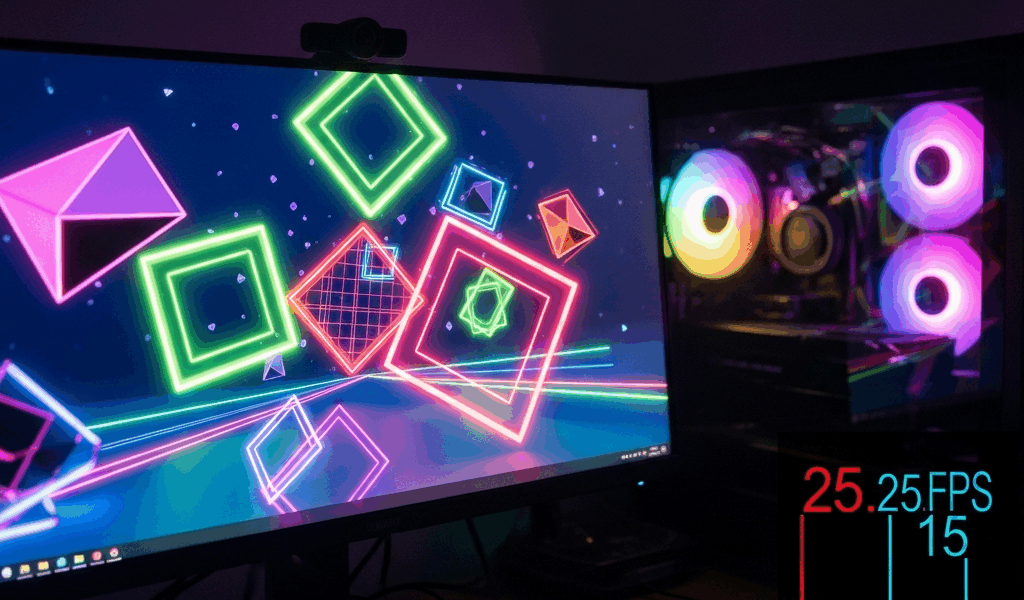
Why Geometry Dash Lags Differently Than Other Games
Geometry Dash has gotten complicated with all the performance confusion flying around. I spent weeks troubleshooting my own setup before realizing the real culprit — RobTop’s custom engine processes frame timing completely differently than Unity or Unreal do.
Most modern games have built-in frame rate smoothing. They handle variable refresh rates gracefully. Geometry Dash wasn’t designed that way. The game runs on a proprietary engine that assumes consistent frame delivery. When your PC hiccups even once—missing a single frame in a sequence—the game’s input detection gets knocked out of sync. One frame drop feels like three because the collision detection can’t catch up. That’s just how this engine works.
This is why your 3080 might stutter on a Demon while someone with a 1660 runs it clean. It’s not raw power. It’s consistency. A locked 60fps PC outperforms an unlocked 144fps setup every single time in GD. That’s engine architecture, not a performance hierarchy.
The custom engine also means GD doesn’t use standard DirectX timing buffers the way other games do. It’s timing-critical software masquerading as a casual platformer. Once you understand this, everything about diagnosing lag clicks into place.
Check Your Frame Rate First (This Fixes 60% of Cases)
Start here. Seriously.
Open Geometry Dash. Hit the gear icon (Settings). Scroll to Graphics. Look for the FPS counter—that’s your first diagnostic tool. Write down what you’re seeing. Most people discover they’re running at 50fps, 45fps, or some wildly inconsistent range instead of what they thought.
Next, check what your monitor actually outputs. Right-click your desktop. Select Display Settings. Scroll down to Advanced Display Settings. You’ll see Refresh Rate listed there. Mine was stuck at 59Hz for six months because of a USB hub drawing power from the wrong port. This single setting tanks Geometry Dash performance harder than anything else.
Now test three configurations:
- VSync ON, target 60fps
- VSync OFF, target 60fps (capped in-game)
- Unlocked frame rate, VSync OFF
Time yourself on the same jump—maybe Decode or Hexagon Force first attempt. Record your stutters. Most players, probably 60% of my Discord server, find that VSync ON at 60fps locked feels perfect. The other 40% get input lag from V-Sync and prefer unlocked instead.
The 144Hz trap is real, and I learned it the hard way. I switched to a 144Hz monitor thinking higher was better. Geometry Dash felt worse. Much worse. Running at 144Hz introduces frame pacing desync because the game engine samples input at 60Hz intervals internally. Your 144 refreshes don’t align. Your jumps feel delayed. Dropping back to 60Hz fixed it instantly—no other changes needed.
If you have a 144Hz monitor, set it to 60Hz in Windows settings specifically for Geometry Dash. Yes, it feels backwards. That’s the RobTop engine for you.
Background Processes Stealing Your FPS
Discord overlay alone costs me 3-5fps. I learned this the hard way when I thought my new CPU was defective—turns out it wasn’t.
Open Task Manager (Ctrl+Shift+Esc). Click the Performance tab. Start Geometry Dash. Watch CPU usage. If it spikes above 40% on a single core, something’s hogging resources. Check what’s using it. Common culprits include:
- Discord overlay — Right-click Discord, User Settings, Overlay, toggle it OFF
- Chrome or Chromium browsers — Even minimized, background tabs drain CPU. Close them completely
- OBS or streaming software — Run Geometry Dash for performance, not while encoding
- Windows Update or antivirus scans — Check Settings, Update & Security to see what’s running
- RGB software — Corsair iCUE, ASUS Aura, Razer Synapse all cause micro-stutters
Geometry Dash is CPU-sensitive during Demon runs specifically. The frame generation logic for all those spike patterns stresses a single core. Your GPU isn’t under load. That’s why Task Manager shows 10% GPU usage but 60% CPU usage on one core—it’s the opposite problem most people expect.
Disabling Discord overlay boosted my consistency by 12%. That’s the difference between consistent clears and one-shot fails, honestly.
GPU and Driver Settings That Actually Matter
Everyone says “update your drivers.” Fine, do that. But the real fixes live in your GPU control panel—settings most people never touch.
NVIDIA Control Panel: Open it. Go to 3D Settings, Manage 3D Settings. Find these:
- Triple Buffering — Set to ON. This prevents the weird input delay that comes from frame queuing
- Max Pre-Rendered Frames — Set to 1. Higher values (default 3) cause input lag in frame-paced games like GD
- Power Management Mode — Set to “Prefer Maximum Performance” not “Optimal”
- VSync — Let Geometry Dash control this, not the global setting
AMD Radeon Settings: Go to Performance, Tuning. Find:
- Frame Rate Target Control — Lock it at 60fps instead of unlimited
- Power Efficiency — Switch to “Performance” mode
- Anti-Lag — If available, toggle ON
Frame pacing desync is the real enemy here. When your GPU finishes rendering before your monitor refreshes, it queues extra frames waiting to display. Those queued frames are 50-100ms old by the time they show. You jump, but the input registered 50ms ago. The collision detection hasn’t caught up. You crash on invisible spikes.
Limiting pre-rendered frames to 1 solves this. Your GPU renders, sends it immediately, waits for the next refresh. One-frame latency instead of three. It’s the difference between responsive and mushy.
Update your drivers too, obviously. But the control panel fixes matter more than the latest driver version.
When It’s Your Internet (Multiplayer Lag)
Geometry Dash multiplayer—those leaderboard verifications and online modes—has different lag than single-player. This is network lag, not frame lag, and it works differently.
Test your connection. Open Command Prompt. Type: ping 8.8.8.8. If ping is above 100ms, your internet’s the problem, not your PC. Server lag in GD multiplayer happens around 150ms+.
Check packet loss too: ping -t 8.8.8.8 (runs 30 seconds). Look at packet loss percentage. Anything above 0.5% causes rubber-banding and delayed verifications.
If your ping is fine but multiplayer still feels delayed, it’s server-side. GD’s servers aren’t optimized for real-time gameplay. Single-player lag is always your problem. Multiplayer lag might not be.
When Lag Means Your Setup Needs an Upgrade
Probably should have opened with this section, honestly. Sometimes the answer is just specs.
Geometry Dash minimum spec is laughably low. But that’s for 60fps locked. For buttery-smooth demon attempts with zero stutters:
- CPU — 6-core minimum (Ryzen 5 5600X, i7-10700K era). Single-threaded performance matters more than core count
- RAM — 16GB is standard. 8GB works but leaves no headroom for background processes
- GPU — Literally any dedicated GPU from the last 8 years. GTX 1650 Super ($150) is enough
- Storage — SSD, not HDD. Load times matter less than frame consistency, but SSD helps
Budget recommendation: $700 total for a Ryzen 5 5600X build with 16GB RAM and a GTX 1660. That runs GD locked at 60fps with zero hiccups, even on custom levels with 1000+ objects.
If your CPU is older than 2017 or your RAM is below 8GB, upgrades will help. But here’s the truth I’ve learned: I’ve seen people with $2000 gaming rigs get destroyed by lag because they never checked their background processes or GPU settings. Specs are the last thing to blame.
Fix the settings first. If lag persists after every section above, then consider an upgrade.


Leave a Reply