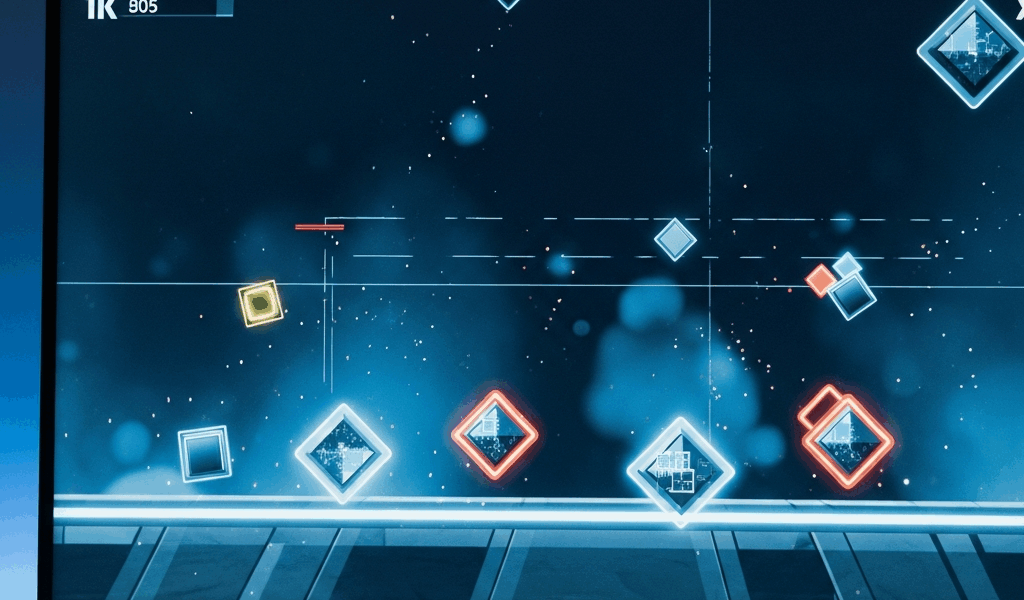
How to Stop Geometry Dash Stuttering During Gameplay
Geometry Dash stuttering has gotten complicated with all the conflicting advice flying around online. As someone who’s spent way too many hours chasing fixes across Reddit threads and Discord servers, I learned that most troubleshooting guides completely miss what’s actually happening. They talk about lag spikes or crashes when the real enemy is that micro-pause — you know the one — that hits exactly when you need precision on your hard demon run.
Here’s the thing: that stutter killing your attempts isn’t network lag. It’s your CPU or GPU briefly falling out of sync with RobTop’s engine. The engine handles frame timing differently than Unity or Unreal, and that’s where everything goes sideways.
Why Geometry Dash Stutters Differently Than Other Games
RobTop didn’t build this on a standard engine. Mobile optimization came first, desktop second. The frame-timing system works nothing like what you’re used to in AAA titles — and that matters.
Most modern engines let your GPU and CPU negotiate frame delivery in real-time. Geometry Dash’s engine is rigid about it. Physics calculations happen at fixed intervals, and the engine expects frames on a predictable schedule. Interrupt that schedule with a shader recompile, GPU memory fragmentation, or background process activity — the engine doesn’t gracefully handle it. It stutters.
Then there’s object rendering. When you load a level with 500+ objects (pretty standard on modern hard demons), the renderer batches everything for GPU submission. Fragmented shader cache or fragmented VRAM means that batching takes longer. Frame delivery hiccups. That 100-millisecond pause happens exactly during your ship section.
That’s what you’re fighting.
Fix 1: Disable Physics and Hazard Rendering on the Fly
Start here. Probably should have opened with this section, honestly, because it costs nothing and needs no system-level access.
Launch Geometry Dash, hit Options, then Advanced Graphics. Find these settings:
- Physics Rendering — toggle off. You lose the smoke puffs and impact effects, but fewer particles mean fewer GPU state changes per frame. Tight timing demons like Bloodbath benefit most.
- Hazard Rendering — toggle off. Spikes and saws stay visible — their shader effects disappear. Bullet-hell demons with dense spike fields stutter hardest when this runs.
- Trail Rendering — disable if you’re using a player trail. That trail generates geometry every single frame. Some icons with ultra-complex trails cause noticeable dips.
You trade visual feedback for frame stability. Fewer particles, though. More predictable delivery.
If all three are off and stuttering persists — move to Fix 2. The problem runs deeper than rendering.
Fix 2: Lower Your Refresh Rate Cap in GD Settings
This sounds wrong. Your monitor is 144Hz, right? Shouldn’t you cap at 144fps for maximum smoothness?
No. This is where the engine reveals its weirdness.
Uncapped framerates or high caps force the engine to recalculate frame timing aggressively. If your system can’t maintain a perfect 144fps, the frame-sync system detects the miss and pauses briefly. You feel that pause.
Locked framerates create predictable intervals. The engine knows exactly when the next frame arrives. No surprises. No pauses.
Here’s what works based on your monitor:
- 60Hz monitor — cap at 60fps
- 144Hz monitor — try 75fps first. If stutter continues, drop to 60. The jump from 60 to 75 usually kills stuttering without losing responsiveness.
- 240Hz monitor — cap at 120fps. Hard demon players swear by this. 240fps introduces frame timing misses too often.
Find it in Options → Advanced Graphics → Frame Rate. Pick a number. Don’t select “Unlimited.”
Fix 3: Clear Shader Cache and Rebuild Level Assets
Your GPU caches shader code — the programs that calculate pixel colors. Geometry Dash generates shaders dynamically based on level content. After months of playing, that cache fragments. A fragmented cache causes the GPU to stall mid-frame while hunting for shader code.
Clearing it is a one-time reset that lasts weeks.
Windows: Navigate to C:Users[YourUsername]AppDataLocalGeometryDash. Delete cache or shader_cache if it exists. Restart the game.
Mac: Open Finder, press Cmd+Shift+G, paste ~/Library/Caches/GeometryDash. Delete the cache folder. Restart.
The first level load rebuilds shaders — takes 2-5 seconds. After that? Buttery smooth. The cache stays clean because modern levels reuse shader patterns.
I learned this the hard way. Three months of blaming my GPU. One cache clear eliminated Bloodbath stutter entirely.
Fix 4: Hardware-Level Changes That Actually Work
Still stuttering? Your system’s operating environment is interfering.
GPU Drivers: Update them. NVIDIA, AMD, and Intel release updates monthly with performance fixes for specific engines. Outdated drivers cause GPU command-queue stalls. Check GeForce Experience (NVIDIA) or AMD Radeon Settings for your version.
Power Settings: Windows power plan matters. Set it to “High Performance” in Control Panel → Power Options. Battery Saver or Balanced plans throttle CPU and GPU clocks. On hard demons, that throttling causes frame delivery misses.
Background Process Killing: Discord overlay, OBS, Chrome with 20+ tabs, antivirus active scans — all steal CPU cycles mid-frame. Before attempting a hard demon, close Discord and browsers. Disable antivirus real-time scanning temporarily (not ideal long-term, but it isolates whether stutter is software-caused).
Mobile-Specific: Clear app cache through Settings → Apps → Geometry Dash → Storage → Clear Cache. Free up 2GB of device storage minimum. Disable Background App Refresh for everything except GD. Quick wins on Android and iOS.
When Stutter Means Your PC Can’t Handle It
Be honest. Hardware has limits.
Geometry Dash runs on ancient systems — a 2015 CPU and 2013 GPU will work. But modern hard demon levels are optimization nightmares. Sakupen Hell uses 800+ objects with complex hitboxes. Bloodbath stacks particle effects four-deep in sections. Some levels are just poorly optimized by creators.
Below these specs, stutter on extreme demons is expected:
- CPU: Intel i5-6th gen or newer (AMD Ryzen 5 1600 equivalent)
- GPU: GTX 960 or RX 480 (4GB VRAM minimum)
- RAM: 8GB
Systems below this line stutter on 600+ object levels regardless of settings. It’s not fixable — it’s a hardware wall.
Practice Insane demons instead. Your execution improves. You don’t waste energy fighting hardware limits. Upgrade your GPU later, then tackle harder content.
That mid-run stutter is fixable for most players. Start with rendering settings, move to frame rate caps, clear the shader cache, then check hardware and drivers. One of these four fixes works for 90% of people. The remaining 10% need a GPU upgrade or need to accept that their current demon wall requires better hardware.


Leave a Reply